
Advanced Pricing
Table of Contents
1. Introduction & Architecture
The Orangecat B2B Pricing system is a modular, scalable, and flexible architecture designed to handle complex pricing scenarios in Magento 2. It follows an Orchestrator Pattern where a central core module (Prices) acts as the entry point, while independent modules (PricesList, PricesCompany) provide specific logic.
How it Works
The core module defines a PriceCalculatorInterface. Each implementation module injects its
calculator into a CalculatorPool. When Magento requests a price, the Orchestrator loop
through these calculators to determine the final price, ensuring seamless integration and easy
extensibility.
2. Orangecat Prices (Core)
The Orangecat Prices module is the orchestrator of the entire pricing ecosystem. It intercepts Magento's native price generation and delegates calculation to the registered modules.
2.1. Admin Menu
Access the pricing configuration via the Magento Admin sidebar under Orangecat > Prices.
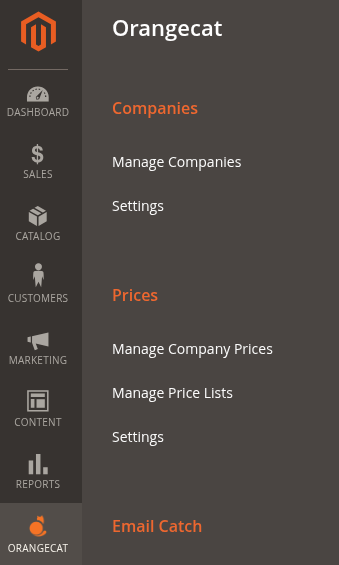
Figure 2.1: Prices Menu in Magento Admin
2.2. General Settings
Configure the core behavior of the pricing engine in Stores > Configuration > Orangecat > Prices.
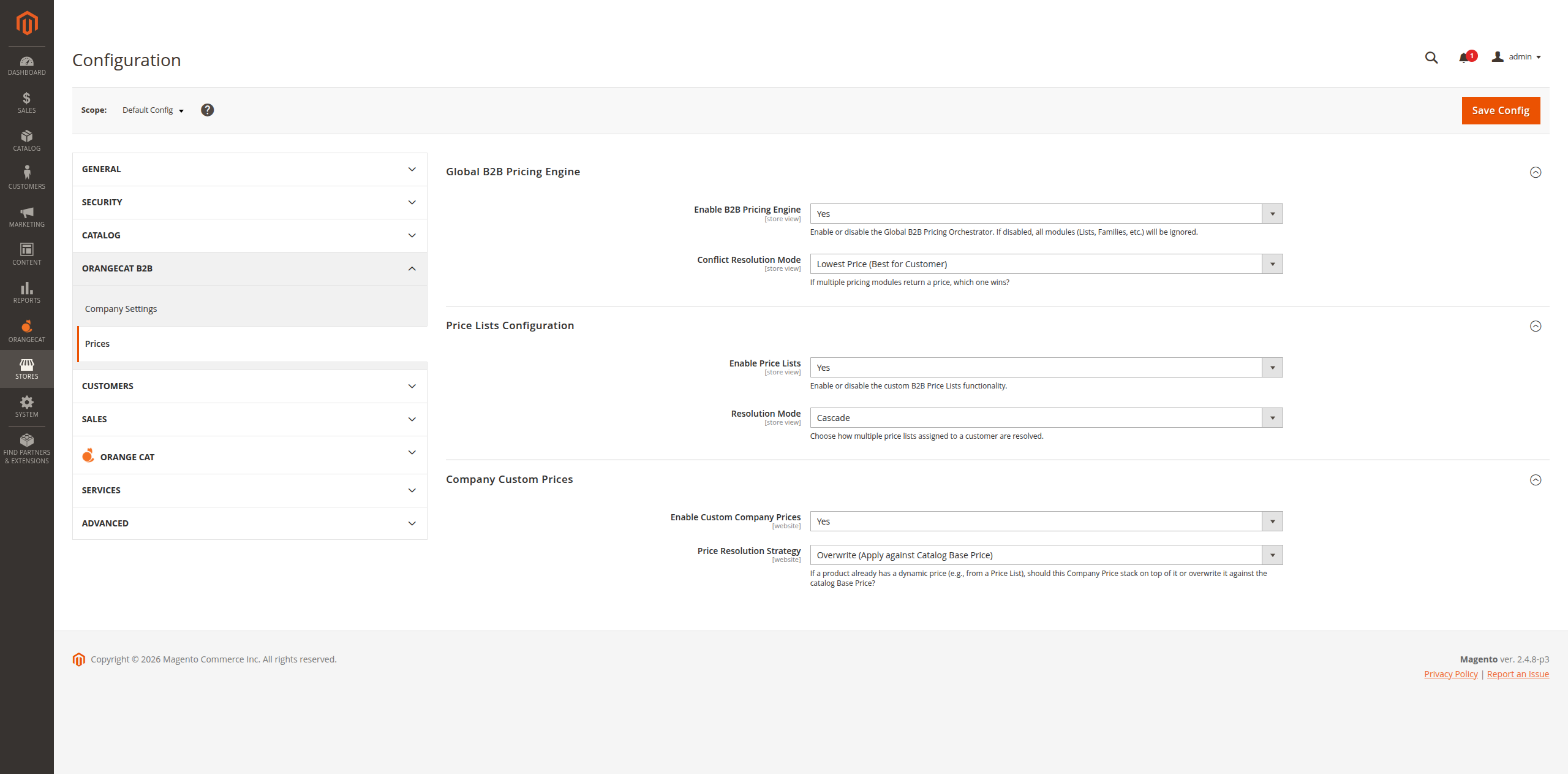
Figure 2.2: Core Pricing Settings
Key settings in the orchestrator include:
- Conflict Resolution Mode: If multiple pricing modules return a price, which one
wins?
- Lowest Price: Best for the customer.
- Priority: Follows the execution order of the modules (Last Module Executed).
3. Orangecat Prices Listing
The Orangecat Prices Listing module allows administrators to create global Price Lists. These lists contain specific product prices or discounts and can be assigned to multiple companies simultaneously.
3.1. General Configuration
Settings found under Stores > Configuration > Orangecat > Prices List:
- Enable Price Lists: Enable or disable the custom B2B Price Lists functionality.
- Resolution Mode: Choose how the discounts will be applied:
- Cascade: Applies discounts sequentially.
- Weight: Uses a weighted logic for resolution.
3.2. Managing Price Lists
The grid view provides an overview of all active and inactive price lists in the system.
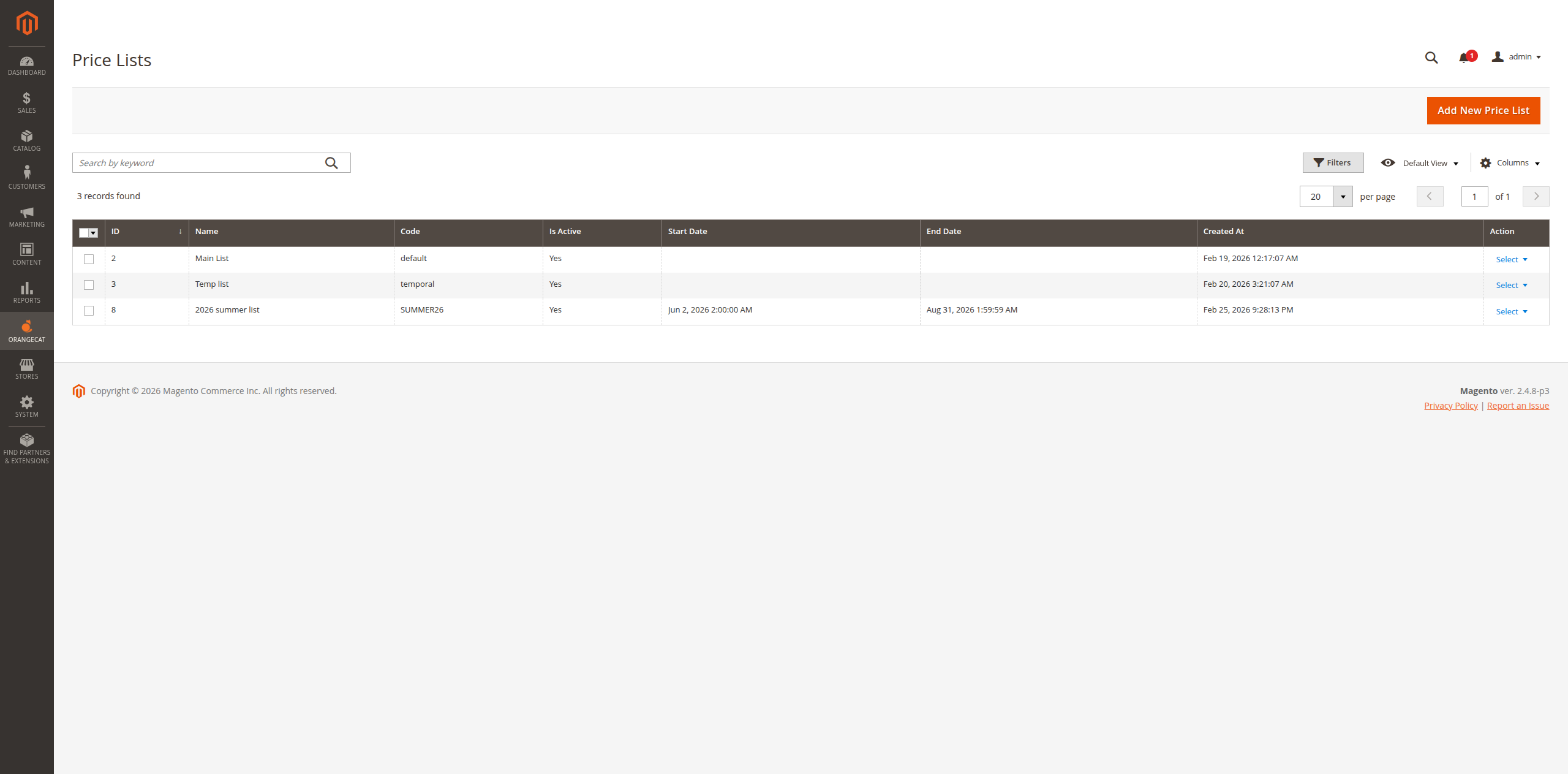
Figure 3.1: Price Lists Management Grid
3.2. Editing a Price List
When editing a list, you can define its scope and basic attributes.
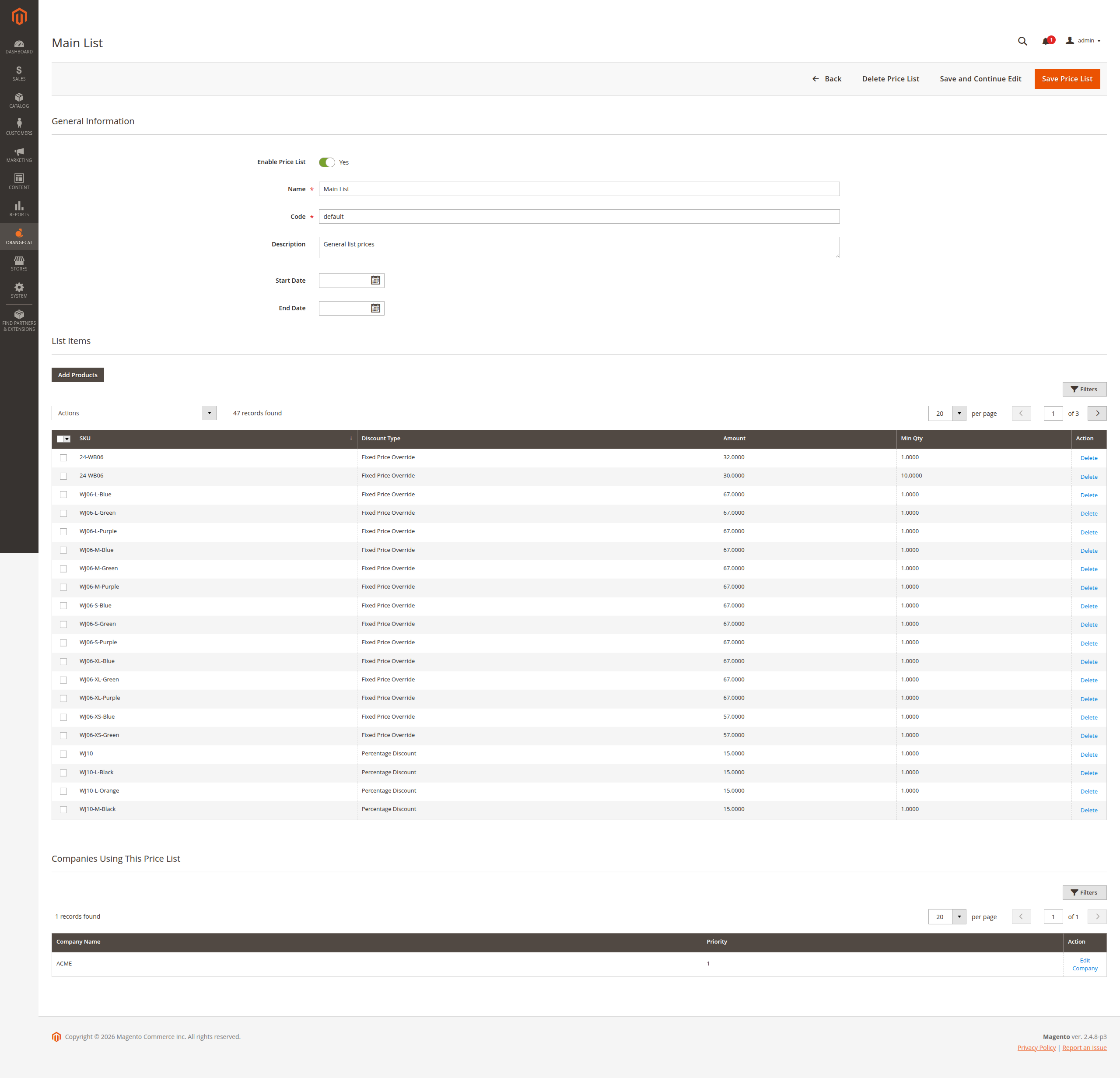
Figure 3.2: General Price List Attributes
3.3. Product Selection & Pricing
Select products to include in the list and apply custom pricing rules (Fixed Price or Percentage Discount).
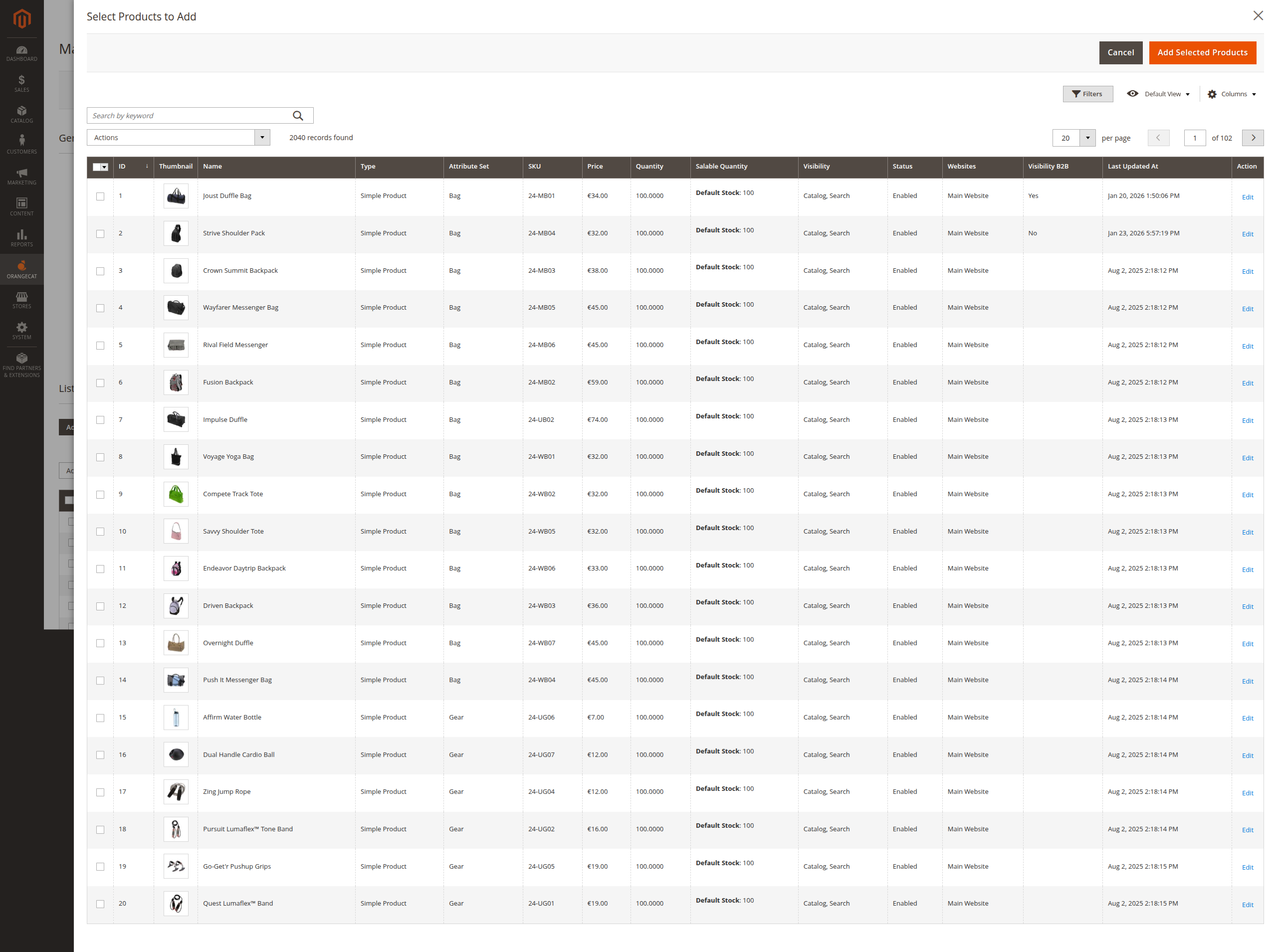
Figure 3.3: Selecting Products for the List
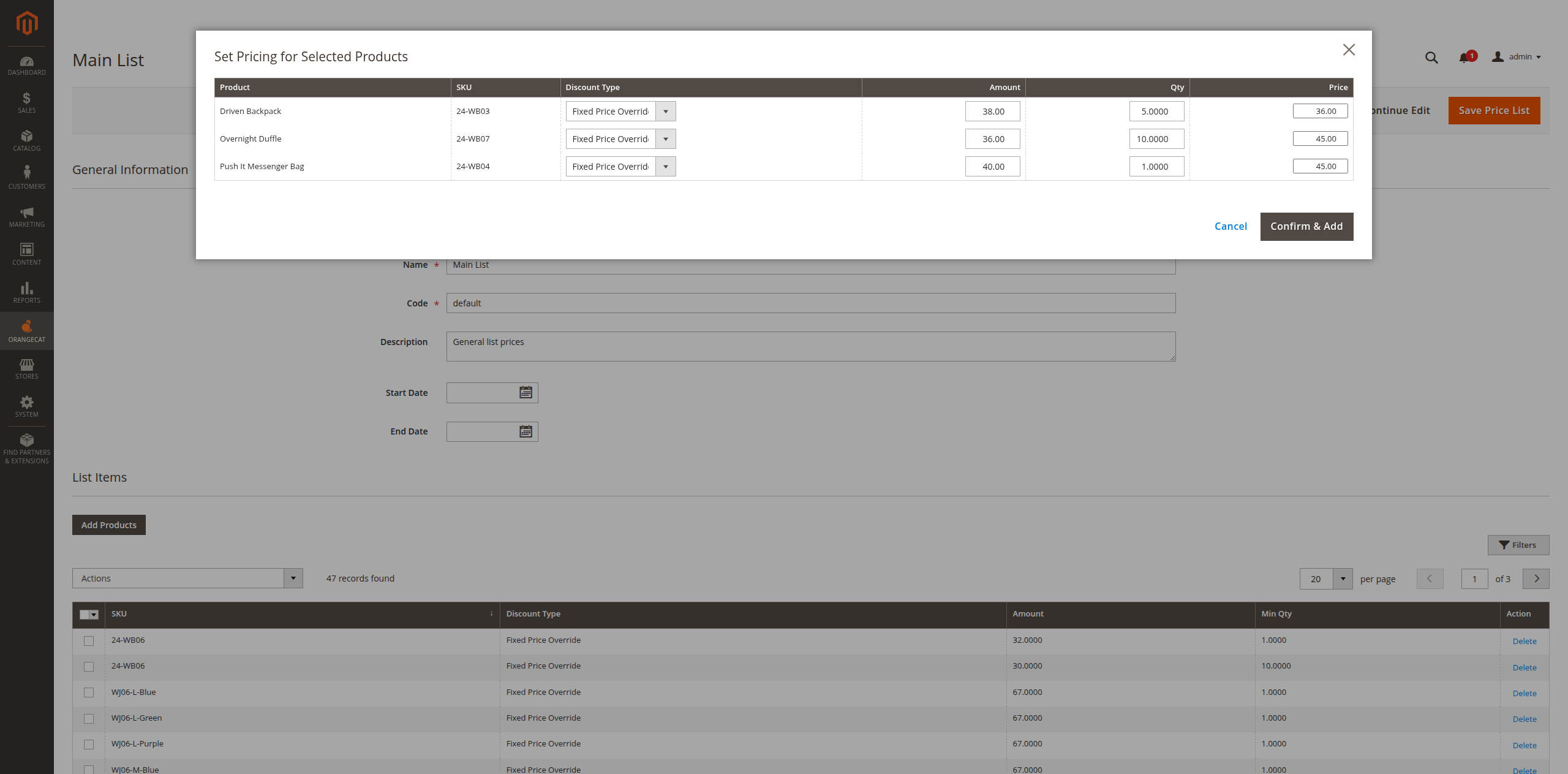
Figure 3.4: Defining Product Prices
3.4. Associating Price Lists to Companies
Once a Price List is created, it can be associated with one or multiple companies from the Magento Admin. This enables those companies to benefit from the defined pricing rules.
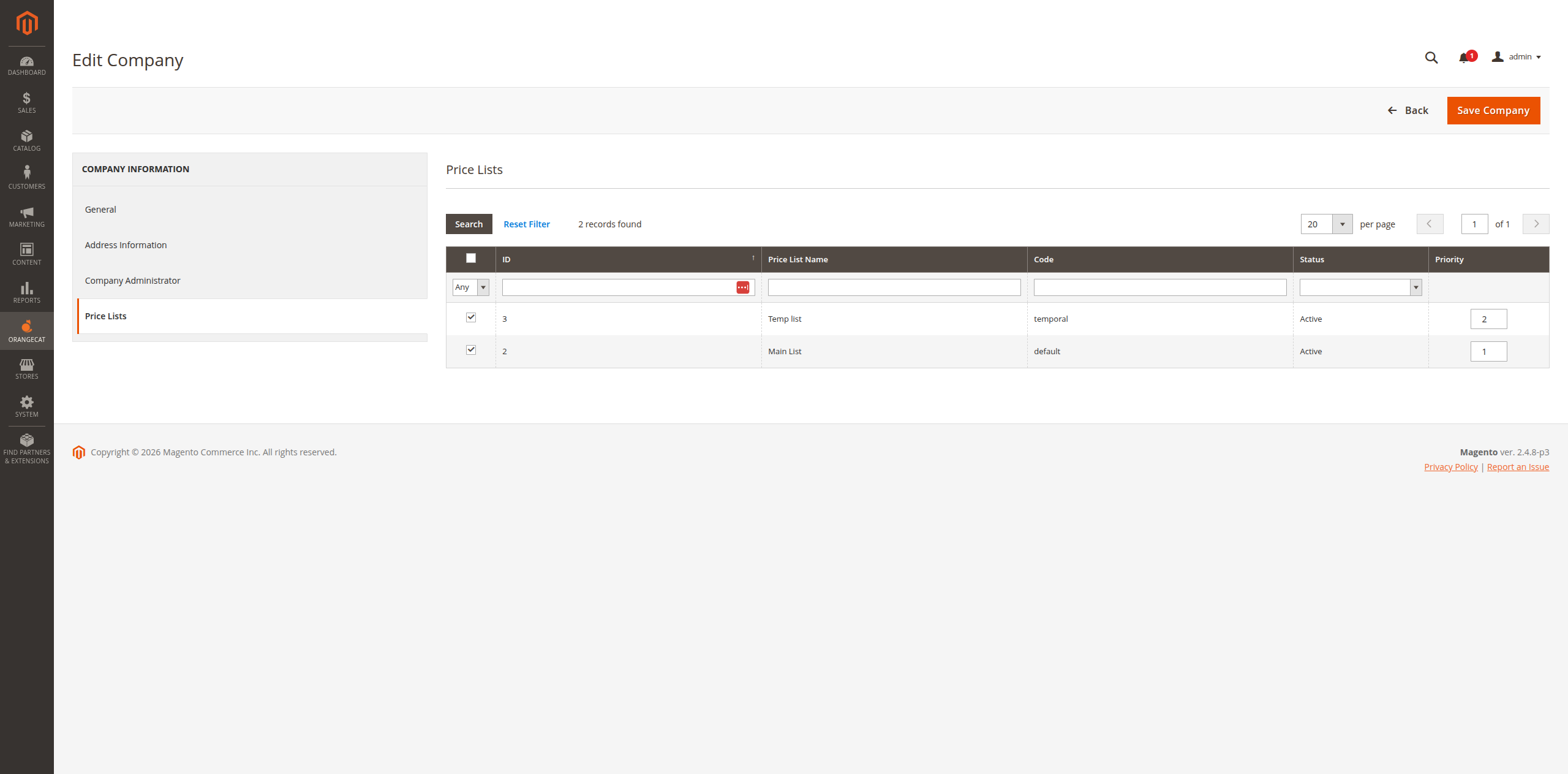
Figure 3.5: Associating Price Lists with a Company
3.5. Importing Price Lists
To facilitate bulk updates, the module includes an import feature allowing administrators to upload price lists and their corresponding prices using CSV files.
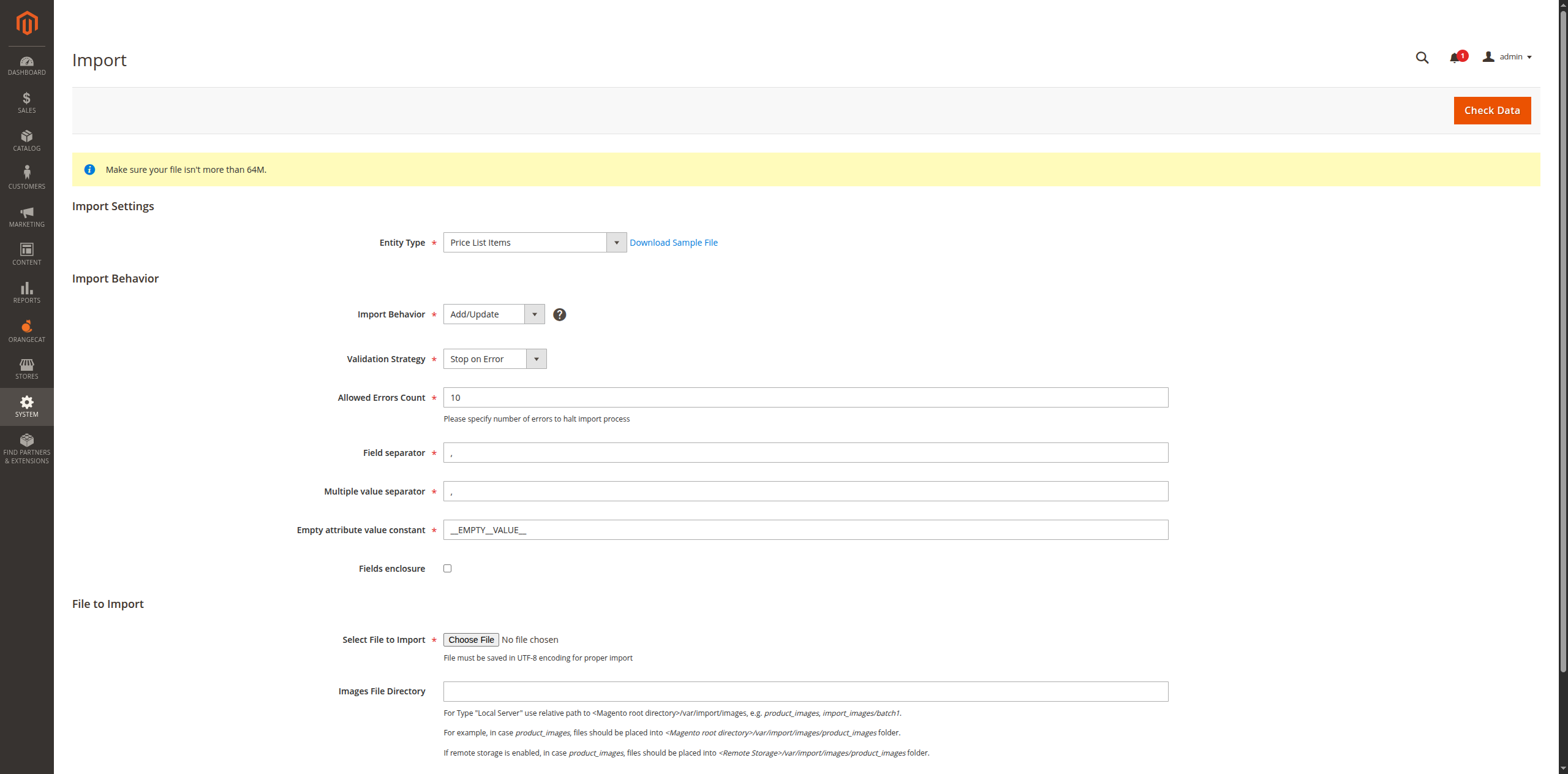
Figure 3.6: Price List Import Interface
3.6. API Documentation
The module exposes a comprehensive REST API for external integrations (ERP/CRM).
GET /search (Search Price Lists)

POST / (Add Price List)

PUT /{id} (Update Price List)

GET /{id} (Get Price List Details)

GET /code/{code} (Get by Code)

DELETE /{id} (Delete Price List)

POST /prices (Add Prices to List)

GET /prices/{id} (Get List Prices)

POST /associate-company (Assign to Company)

4. Orangecat Prices Company
The Orangecat Prices Company module provides the highest level of specificity by allowing price overrides dedicated to a single company. This takes precedence over global price lists.
4.1. General Configuration
Settings found under Stores > Configuration > Orangecat > Prices Company:
- Enable Custom Company Prices: Enable or disable prices by company functionality.
- Price Resolution Strategy: If a product already has a dynamic price (e.g., from a
Price List), should this Company Price stack on top of it or overwrite it against the catalog Base
Price?
- Overwrite: Apply against Catalog Base Price.
- Stack: Apply on top of earlier discounts.
4.2. Company Prices Management
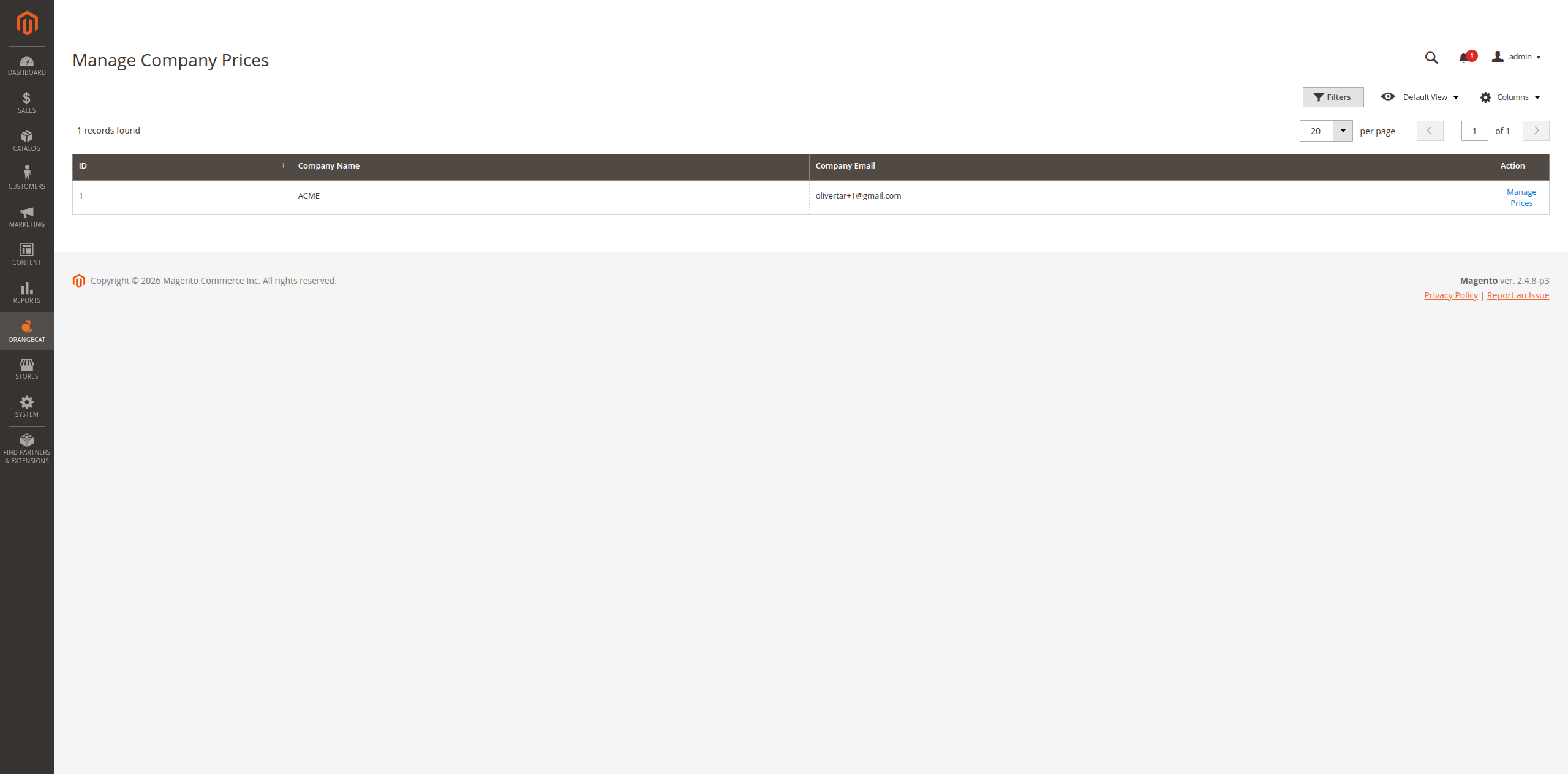
Figure 4.1: Company Specific Prices Grid
4.2. Assigning Prices to Companies
Navigate to the company edit screen to manage their exclusive pricing rules.
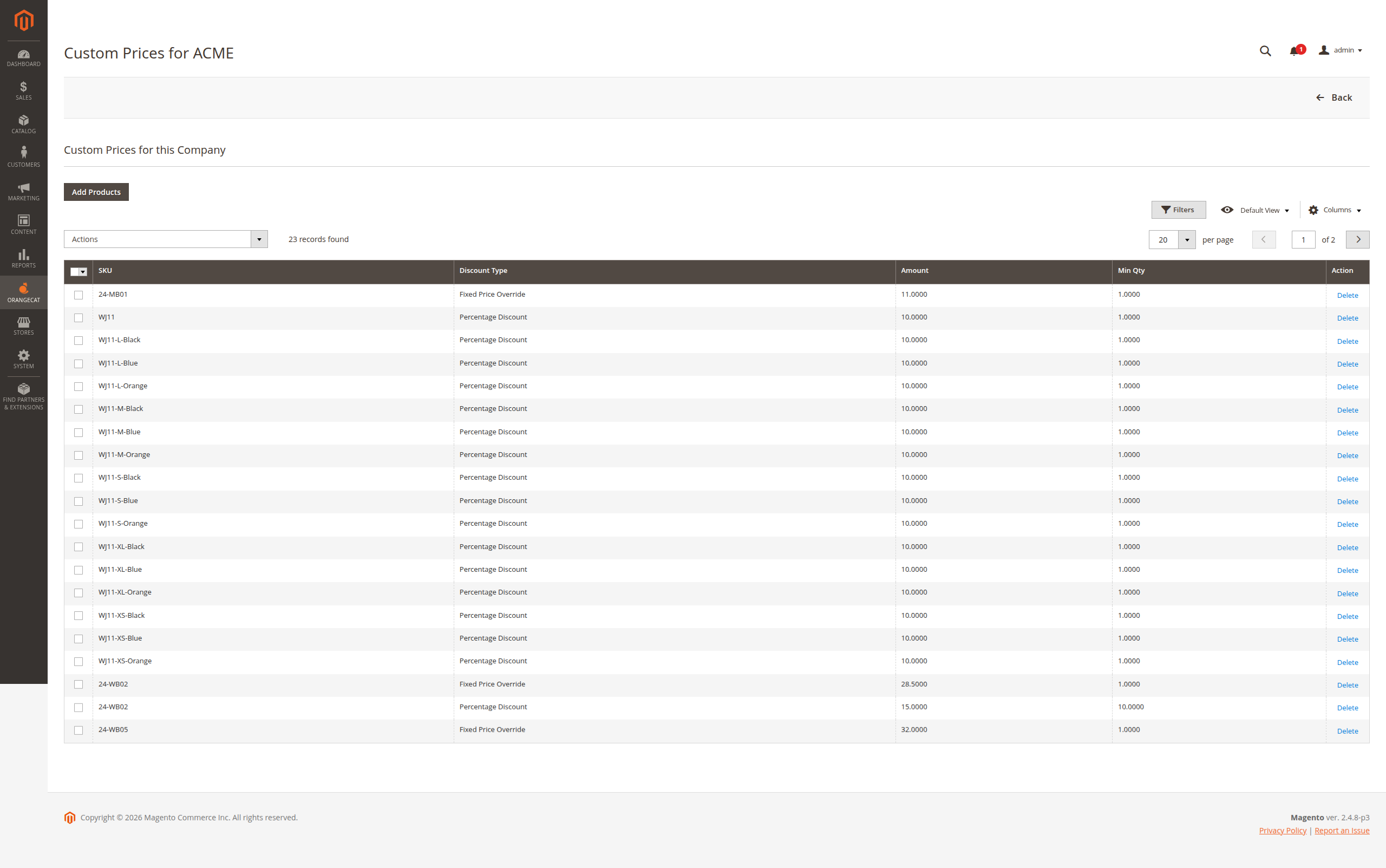
Figure 4.2: Managing Prices for a Specific Company
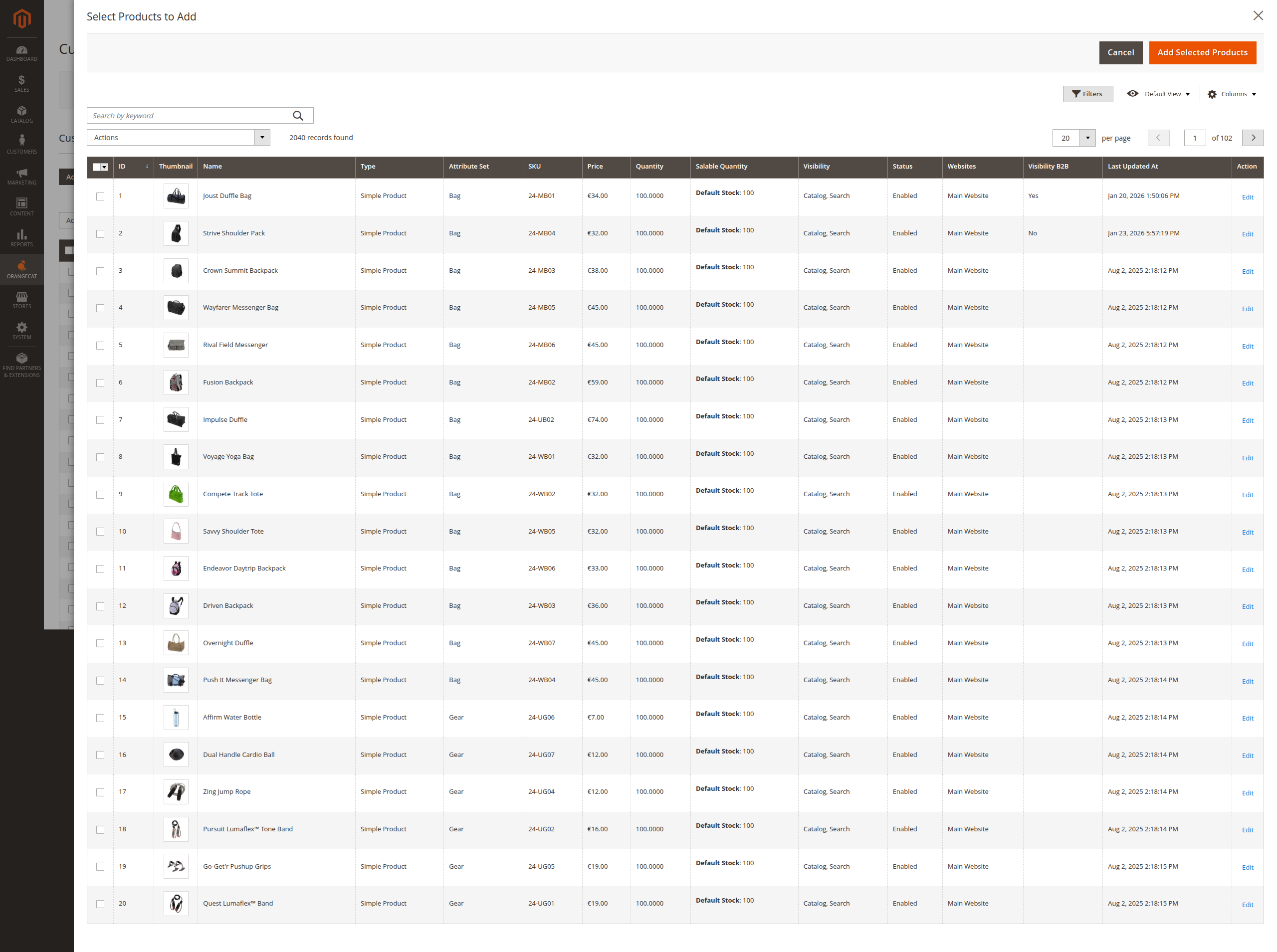
Figure 4.3: Selecting Exclusive Products
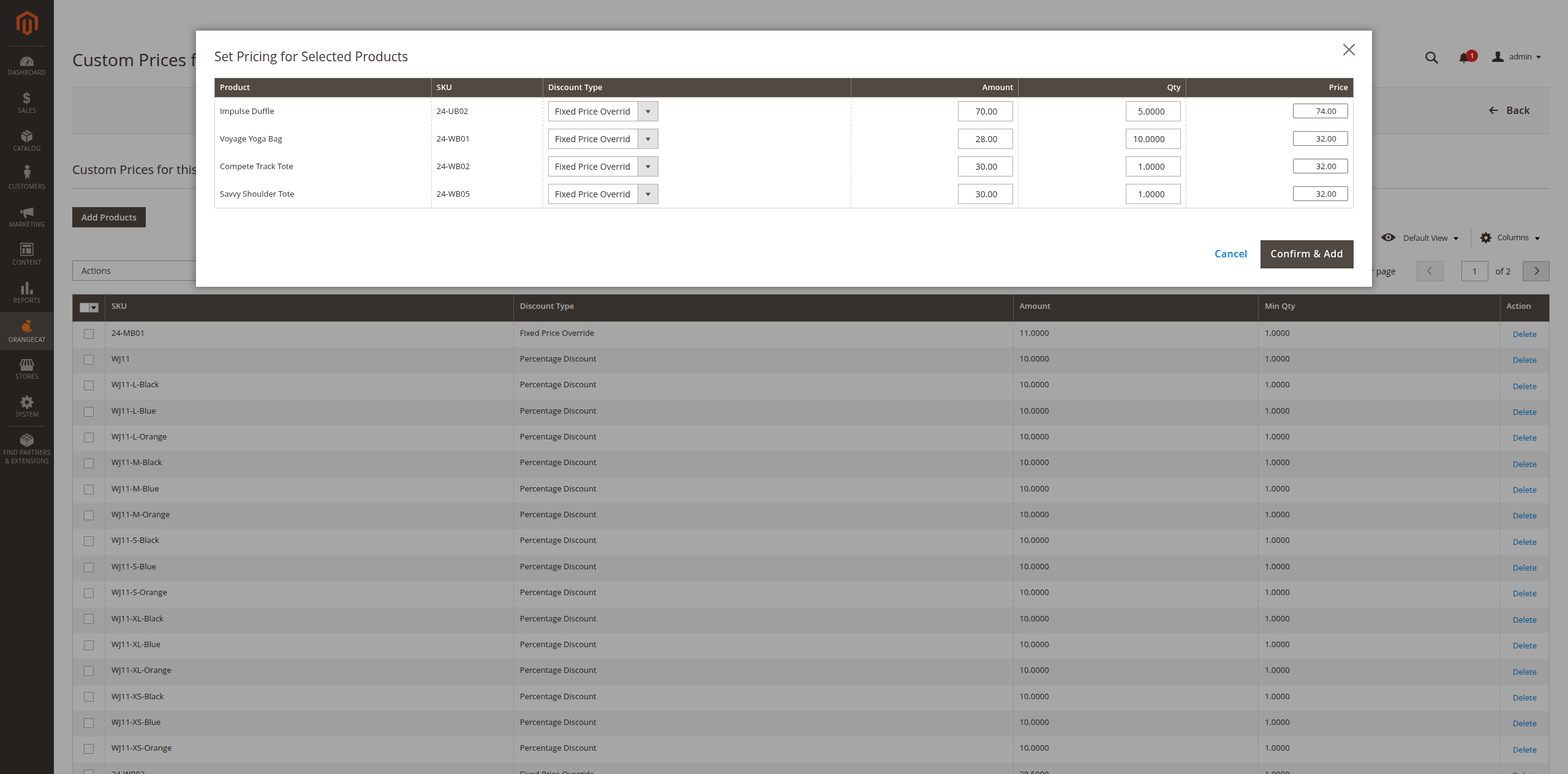
Figure 4.4: Applying Company-Specific Rates
4.3. Importing Company Prices
Administrators can bulk-import product prices for specific companies via the import tool, ensuring rapid synchronization with external pricing data.
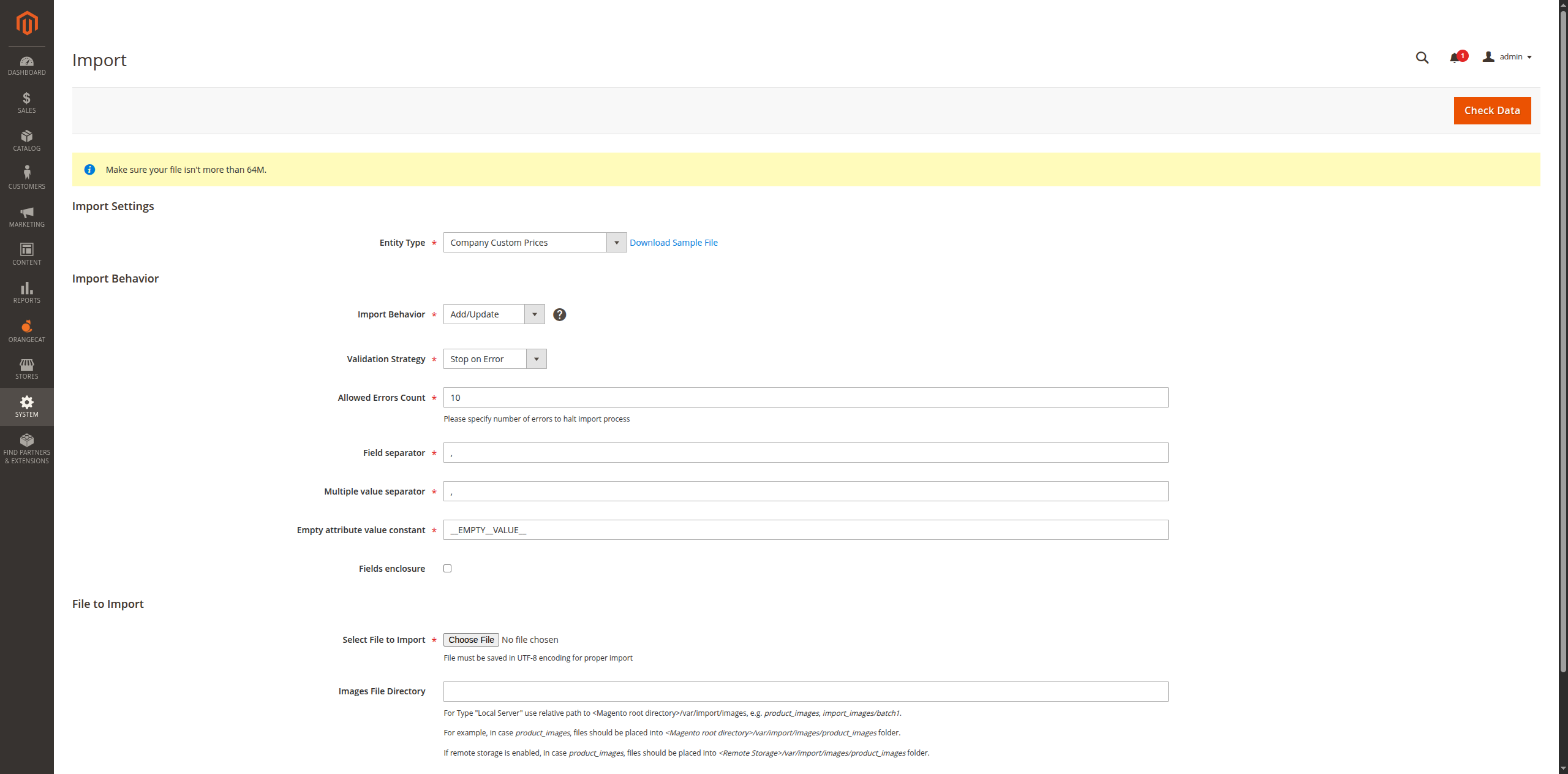
Figure 4.5: Company Prices Import Interface
4.4. API Documentation
REST endpoints for managing direct company-to-product price mappings.
GET /search (Search Company Prices)

POST /add (Add Price to Company)

GET /price/{companyId}/{sku} (Get Specific Price)

DELETE /company/{companyId} (Remove All Company Prices)

DELETE /sku/{sku} (Remove SKU from All Companies)
