
Quick Order
Table of Contents
1. Introduction
The Orangecat Quick Order module provides a streamlined interface for B2B customers and frequent shoppers to add multiple products to their cart efficiently. By bypassing the traditional product browsing flow, users can significantly reduce the time required to place large or recurring orders.
Key features include autocomplete product search, bulk SKU entry via text, and CSV file uploads for massive volume orders.
2. Configuration
The module settings can be found in the Magento Admin under Stores > Configuration > Orangecat > Quick Order. Here you can enable or disable the functionality globally for the store.
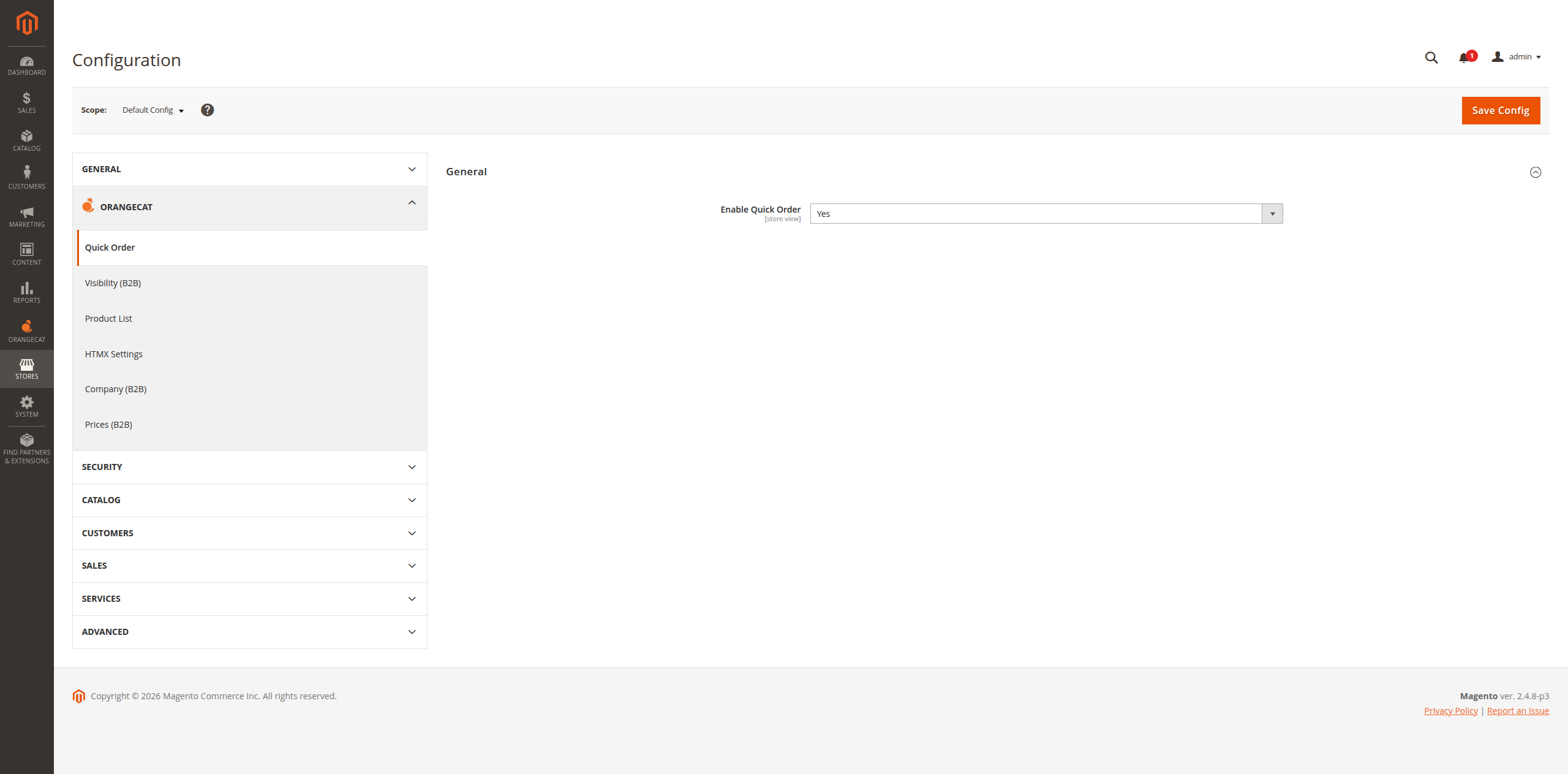
Figure 2.1: General Configuration Settings
3. Frontend Workflow
The Quick Order interface is accessible to logged-in customers, typically via a link in the header or the customer account dashboard. The URL is /quickorder.
3.1. Quick Order Interface
The main interface is divided into three primary input methods and a selection list area. This allows users to choose the method that best suits their current needs.
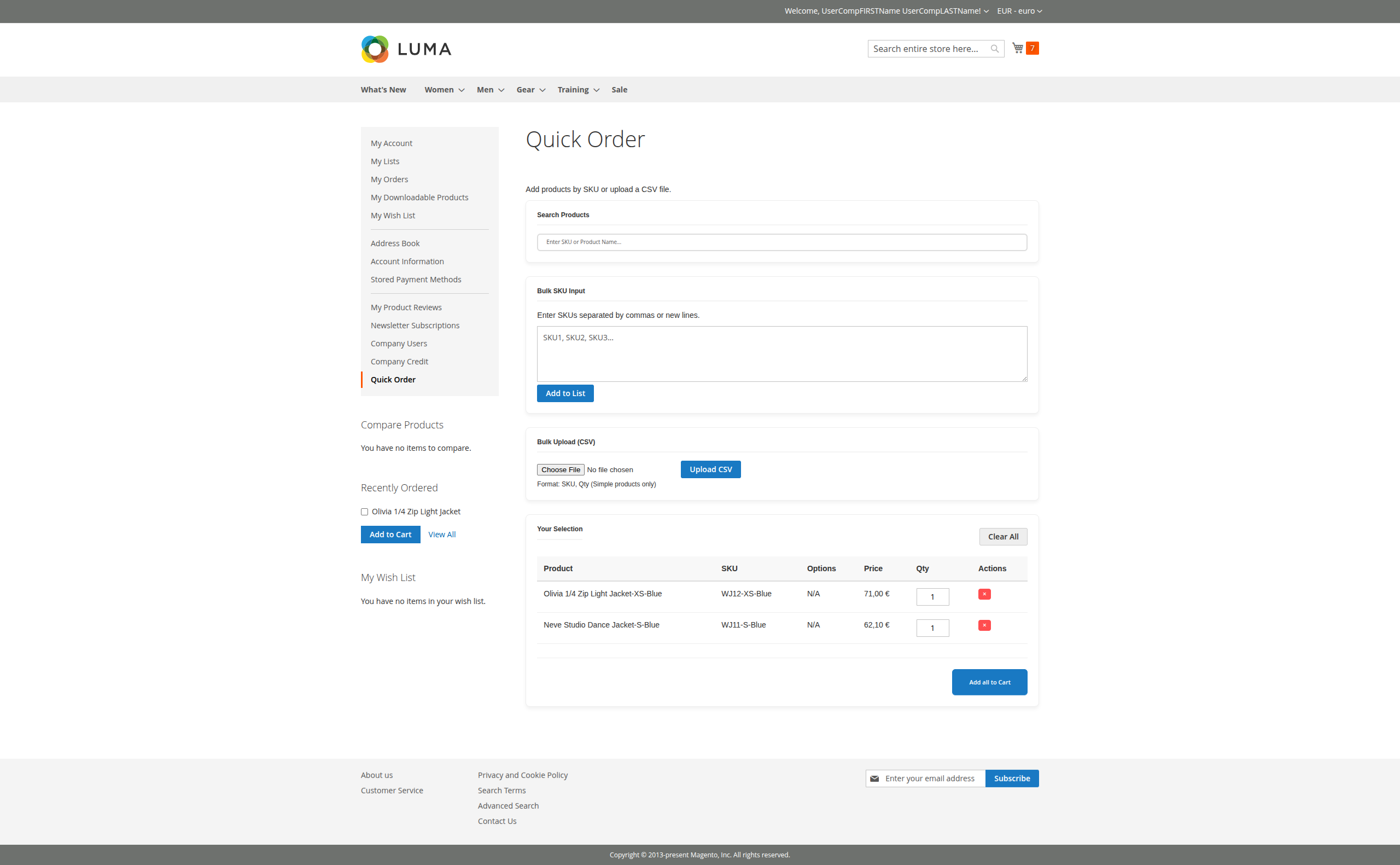
Figure 3.1: Quick Order Main Interface for Customers
3.2. Search by SKU or Name
The search bar provides real-time autocomplete results. As soon as the user enters at least 3 characters, the system searches matches across product names and SKUs.
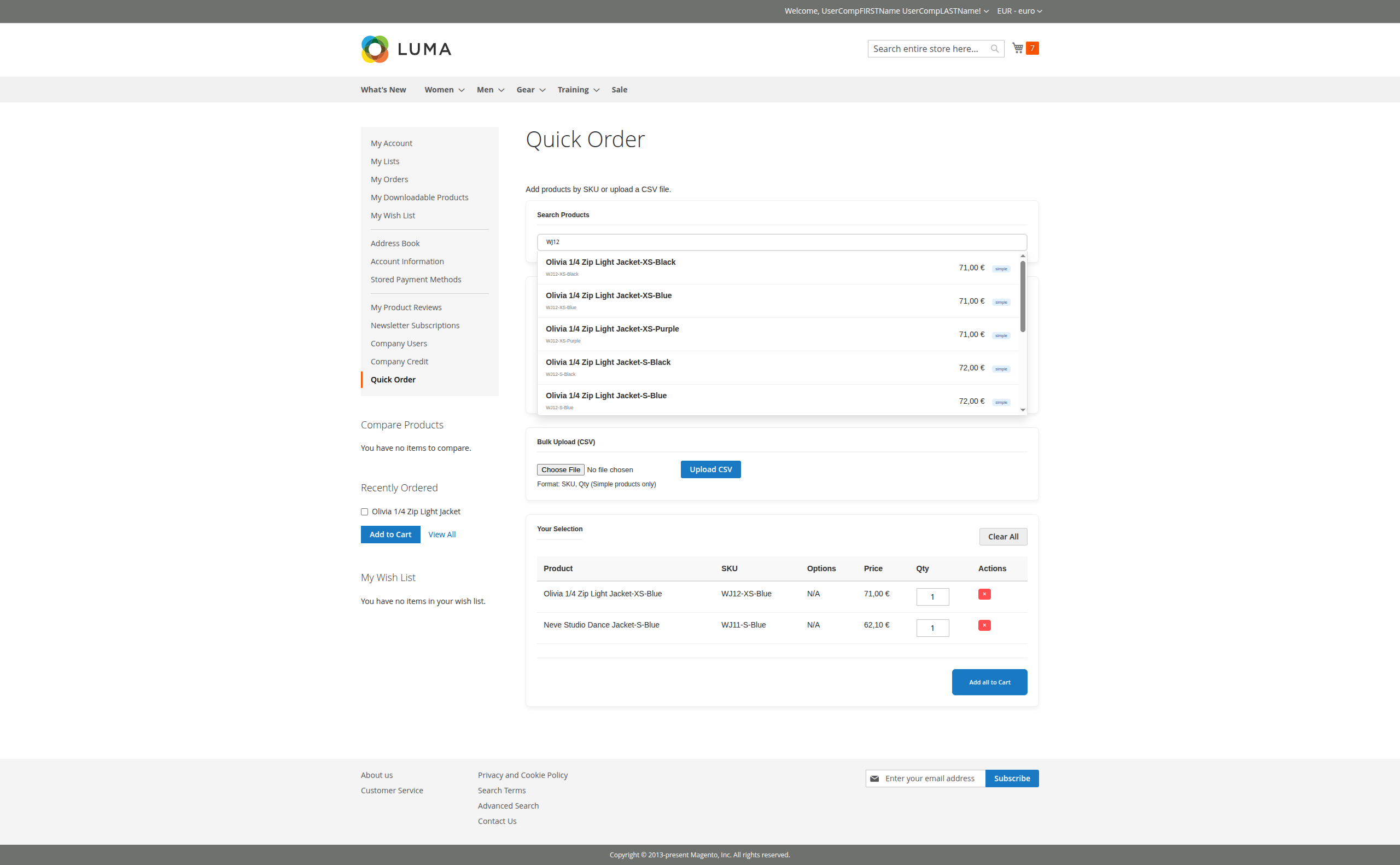
Figure 3.2: Searching products by SKU/Name with results preview
3.3. Bulk SKU Input
For users who already have a list of SKUs ready, they can paste them directly into the "Bulk SKU Input" text area. The system supports SKUs separated by commas, spaces, or new lines. Clicking "Add to List" will validate and add all identified products at once.
3.4. Bulk Upload (CSV)
Large orders can be handled via CSV upload. The file should contain two columns: SKU and Quantity. The system will process the file, validate that each SKU corresponds to a Simple Product, and add them to the selection list with the specified quantities.
Note: Only Simple products are supported for the CSV upload method.
3.5. Managing the Selection
Once products are added to the list, users can still fine-tune their order before proceeding to checkout:
- Update Quantity: Modify the numeric value in the "Qty" column for any item.
- Remove Item: Click the "X" button on any row to delete that specific product.
- Clear All: Use the "Clear All" button to empty the entire selection.
- Add all to Cart: When ready, the customer can add the entire collection to the shopping cart with a single click.