
Company Credit
Table of Contents
1. Introduction
The Orangecat Company Credit module adds a credit line to each B2B company. Companies can have a credit limit, a currency, and an optional flag to allow exceeding the limit. All credit operations are stored in a ledger that records charges, refunds and adjustments.
2. Configuration (System Settings)
Navigate to Stores → Configuration → Orangecat → Company Credit to adjust the following options:
- Enable Company Credit – Master switch. When set to
Nothe payment method, frontend tab and admin UI are hidden. - Refund credit on order cancellation – If
Yes, the credit used for a cancelled order is automatically returned to the company. - Refund credit on credit memo – If
Yes, creating a credit memo will also return the used credit.
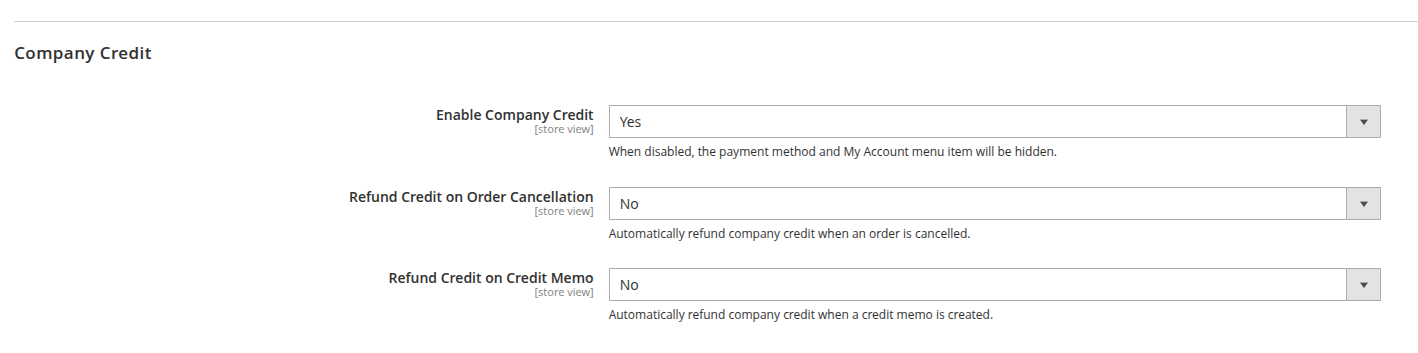
Figure 2 – Company Credit configuration in the Magento admin.
3. Payment Method Configuration
In the module configuration, enable the Enable Company Credit option. When enabled, the Company Credit payment method will appear at checkout.
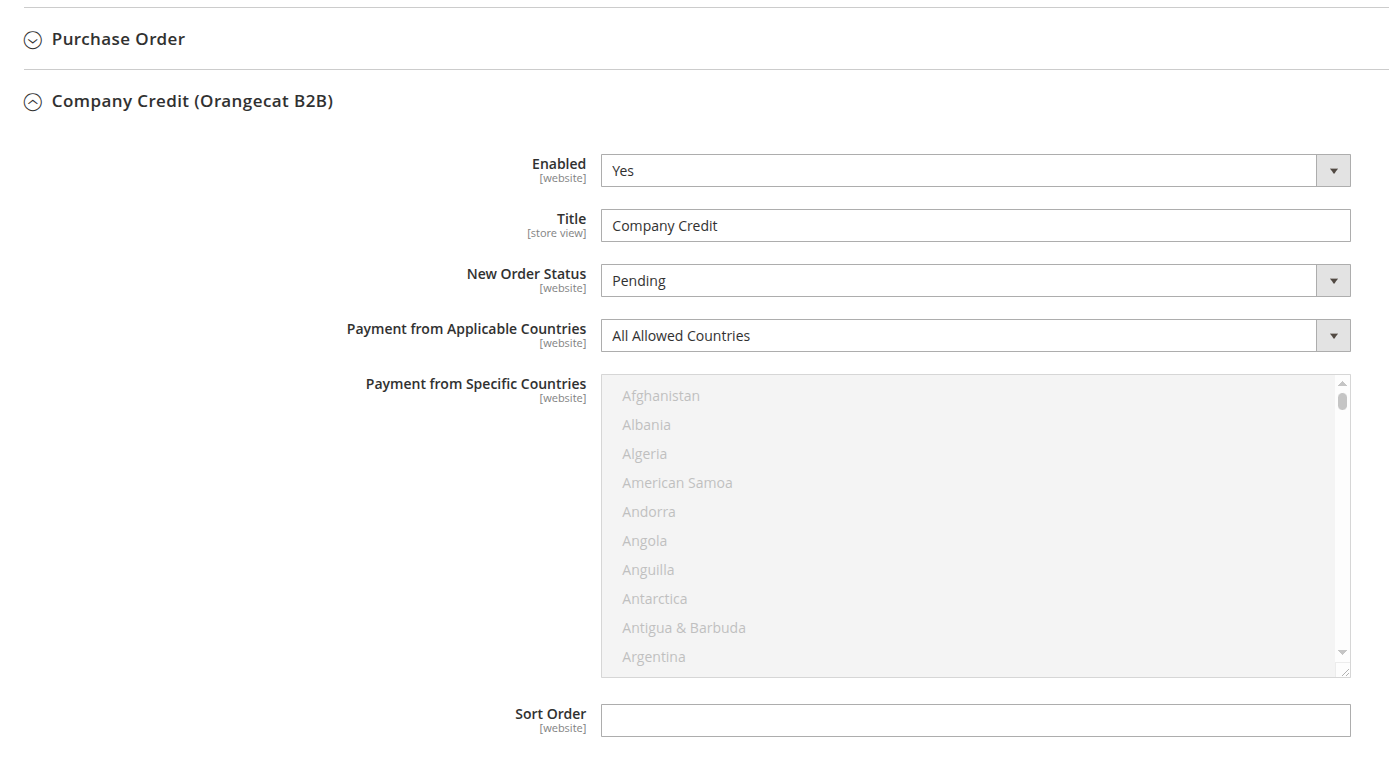
Figure 3 – Payment method configuration in the administration.
4. Frontend – My Account "Company Credit" Tab
Customers belonging to a company will see a new menu item Company Credit under My Account → Company Users. The page displays:
- Current balance, credit limit and currency.
- Ledger history grid with date, amount, order reference and comments.
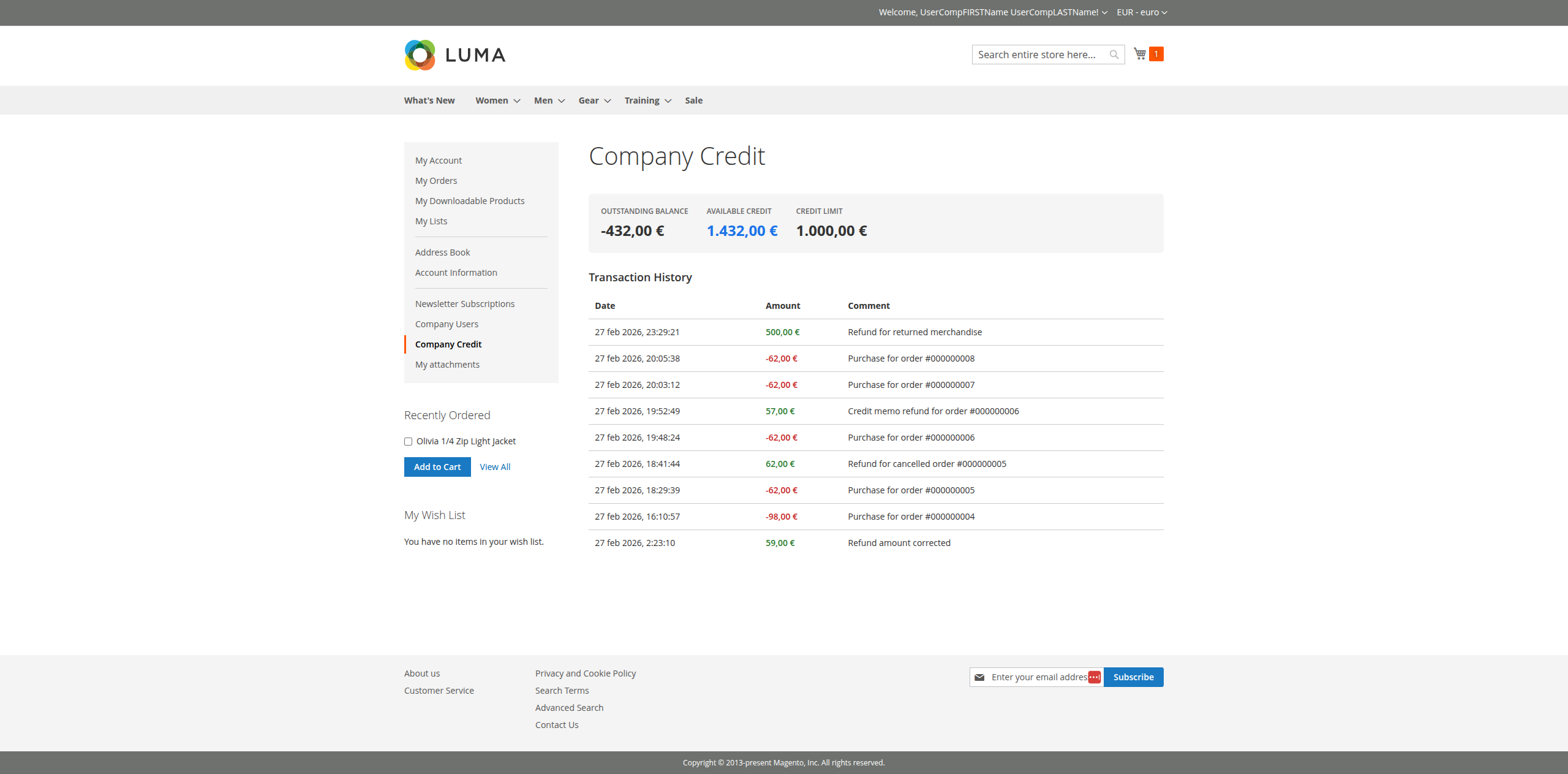
Figure 4 – Company Credit tab in the customer account account dashboard.
Checkout View
During the checkout process, the "Company Credit" payment method becomes available if the module is enabled and the customer belongs to a company.
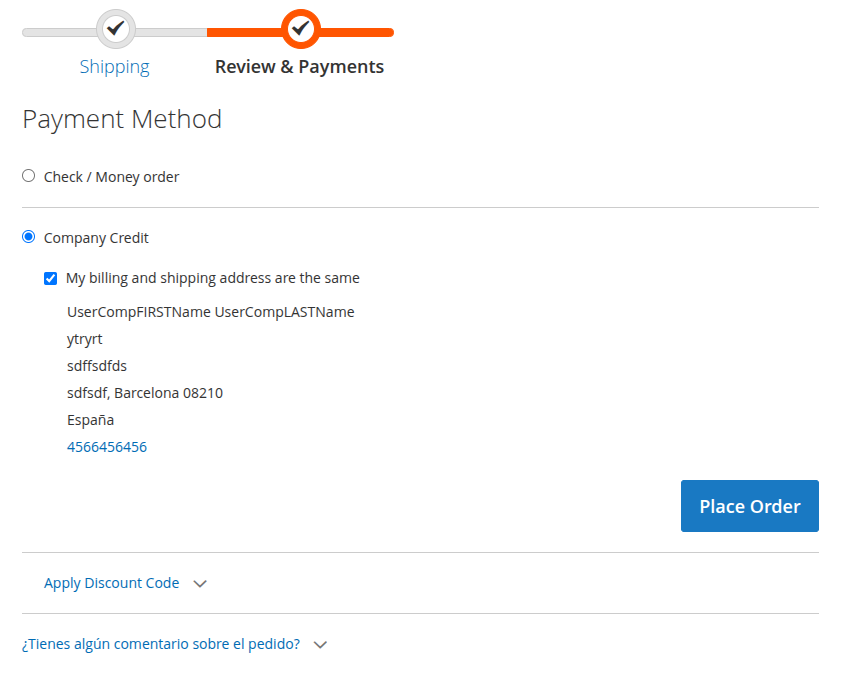
Figure 5 – Company Credit payment method at checkout.
5. Admin – Ledger Grid & Refund Modal
In the admin, open Orangecat → Company Credit → Ledger to view all entries. The grid offers standard Magento filters and actions.
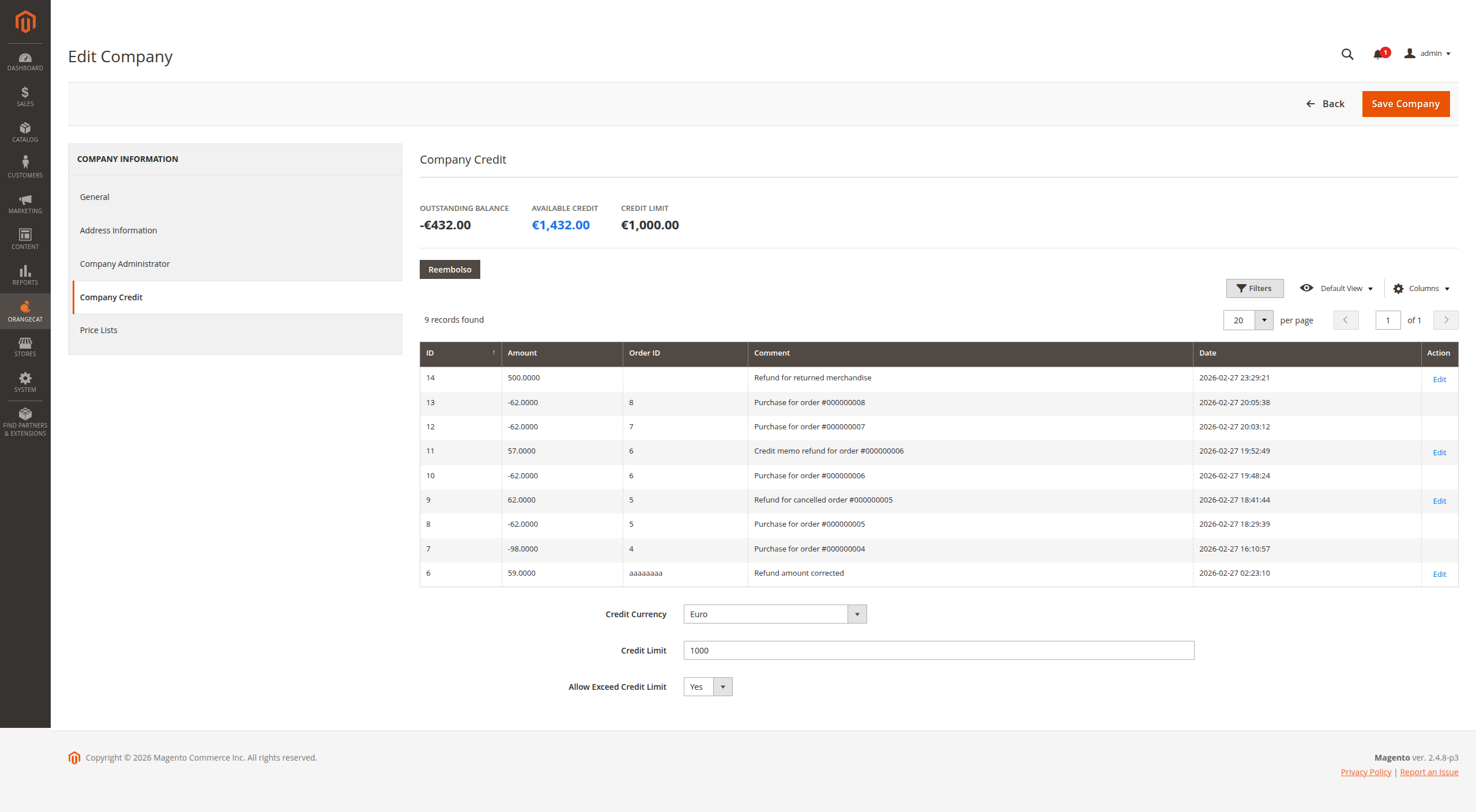
Figure 6 – Ledger grid listing all credit transactions.
To create a manual refund, click the Refund button on the company edit form. A modal appears where you can specify the amount and an optional comment.
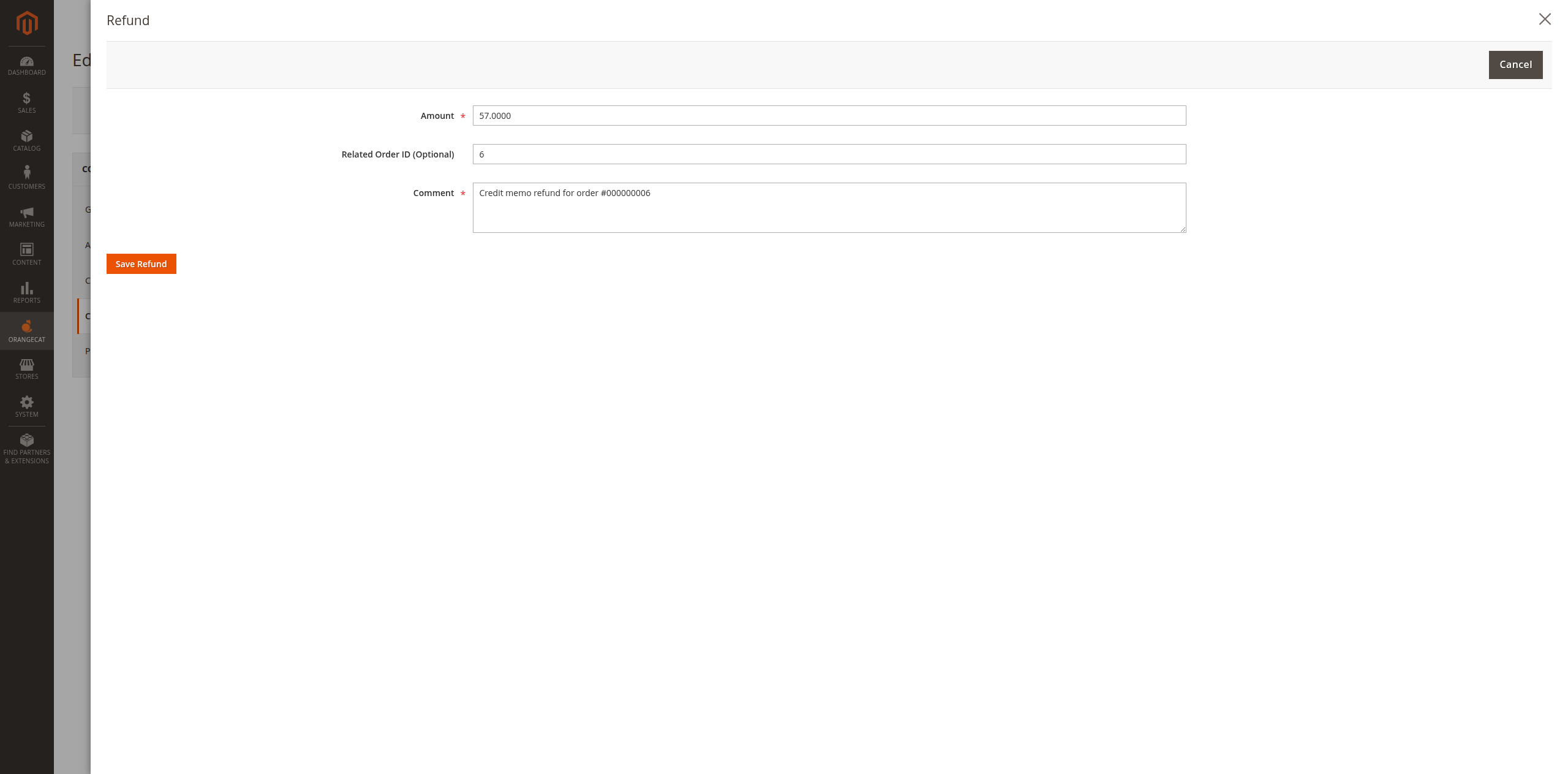
Figure 7 – Refund modal for adding a credit entry.
6. REST API Reference
All endpoints are protected by the ACL resource Orangecat_CompanyCredit::credit. A bearer
token with admin privileges is required.
GET /V1/mycompany/credit/:companyId
Retrieve credit conditions and current balance.
{
  "entity_id": 1,
  "company_id": 1,
  "currency_code": "USD",
  "credit_limit": 5000,
  "balance": 1200,
  "allow_exceed_limit": 0
}
PUT /V1/mycompany/credit/:companyId
Update credit conditions (currency, limit, allow exceed).
{
  "currencyCode": "EUR",
  "creditLimit": 10000,
  "allowExceedLimit": 1
}
GET /V1/mycompany/credit/:companyId/ledger
List ledger entries for a company.
[
  {
    "entity_id": 5,
    "company_id": 1,
    "amount": 500,
    "order_id": null,
    "comment": "Manual refund via API",
    "created_at": "2026-02-27 20:00:00"
  }
]
POST /V1/mycompany/credit/:companyId/refund
Create a refund (positive ledger entry) and adjust balance.
{
  "amount": 500.00,
  "comment": "Refund for returned merchandise"
}
PUT /V1/mycompany/credit/ledger/:entryId
Edit an existing ledger entry.
{
  "amount": 600,
  "comment": "Refund amount corrected"
}
DELETE /V1/mycompany/credit/ledger/:entryId
Delete a ledger entry. Note: balance is not automatically adjusted; handle manually if needed.