
Product Lists
Table of Contents
1. Introduction
The Orangecat ProductLists module for Magento 2 allows customers to create and manage personalized product lists. Users can save products to custom lists for later reference, creating a powerful wishlist and procurement tool for both B2B and B2C scenarios.
This manual covers the configuration, frontend user experience, and administrative management of the ProductLists module.
2. Configuration
The module settings can be found in the Magento Admin under Stores > Configuration > Orangecat > ProductLists. Here you can configure general settings for the module behavior, including enabling or disabling the functionality and setting default options.
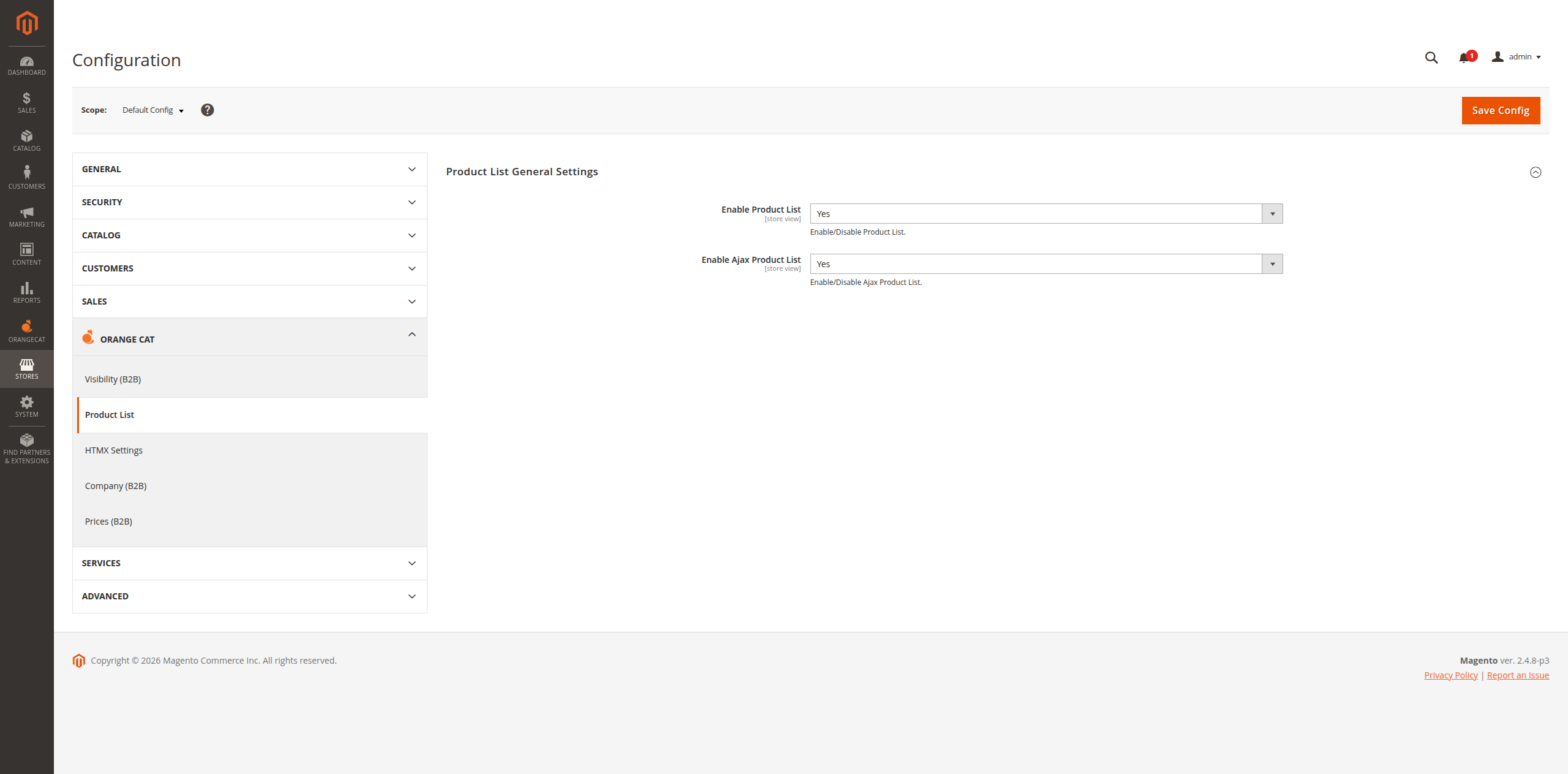
Figure 2.1: General Configuration Settings
3. Frontend Workflow
The module enhances the frontend user experience by allowing customers to create product lists and add items from various pages throughout the store.
3.1. Adding Products to Lists
Customers can add products to their lists from multiple locations in the storefront.
From Product Detail Page (PDP)
When viewing a product detail page, customers can add the product directly to an existing list or create a new list on the fly. The "Add to List" button appears alongside other product actions.
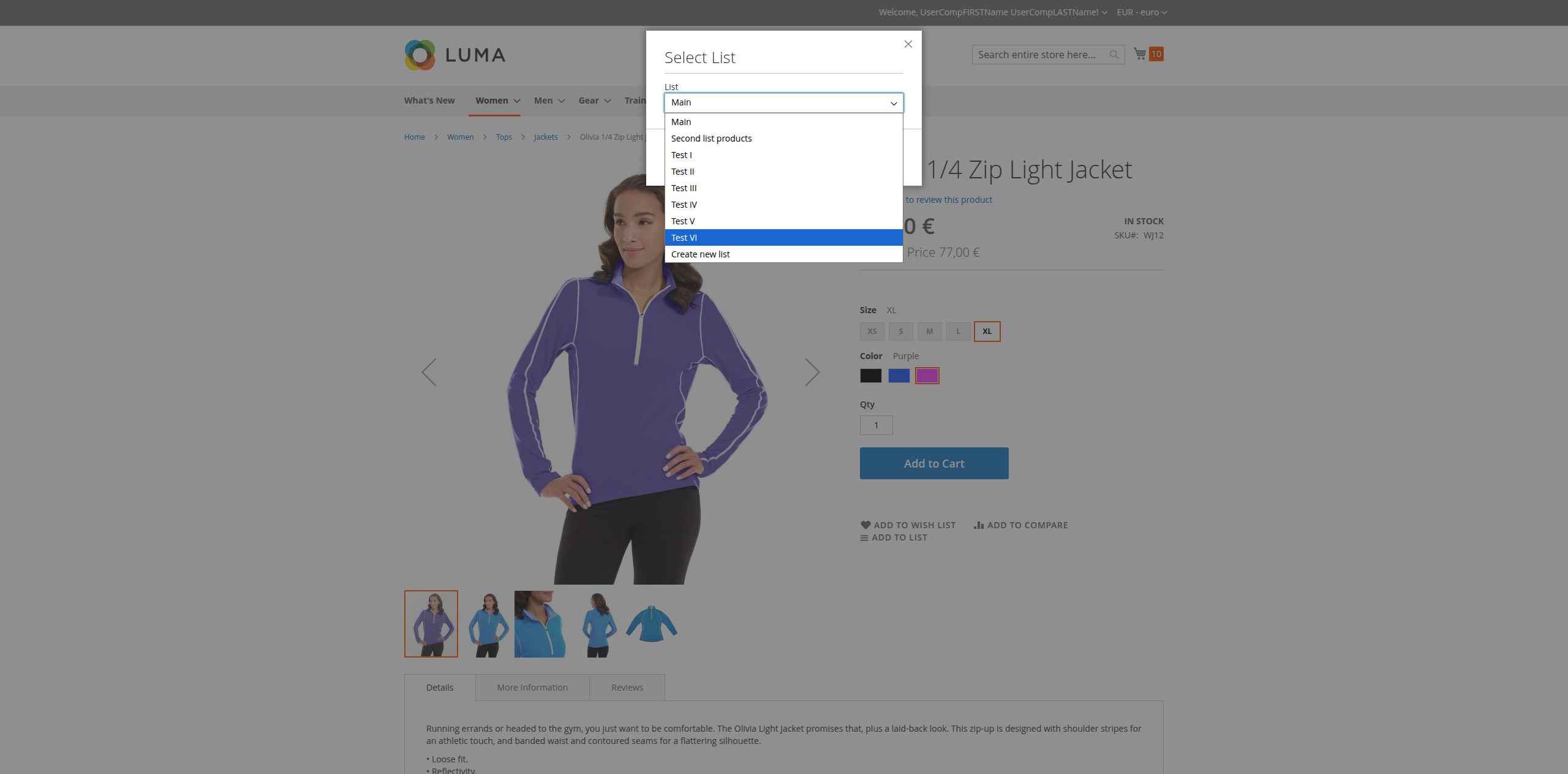
Figure 3.1: Adding Product to List from Product Detail Page
From Product Listing Page (PLP)
Products can also be added to lists directly from category pages and search results. This allows for quick list building while browsing the catalog.
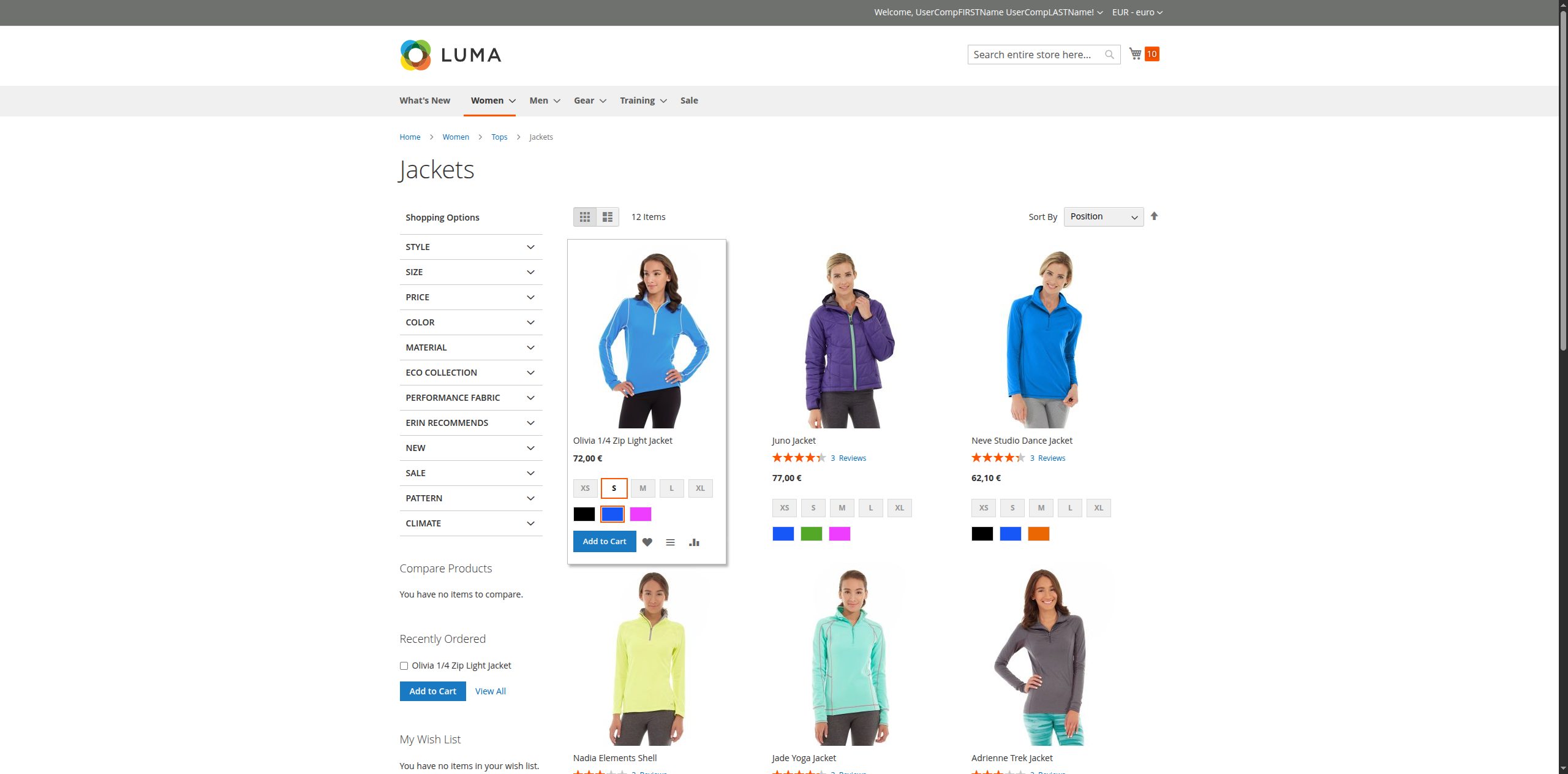
Figure 3.2: Adding Product to List from Product Listing Page
3.2. Managing My Lists
Customers can access and manage their product lists from their account dashboard.
Lists Grid View
The "My Lists" section in the customer account displays all created lists in a grid format, showing list names and item counts. From here, customers can view, edit, export, or delete their lists.
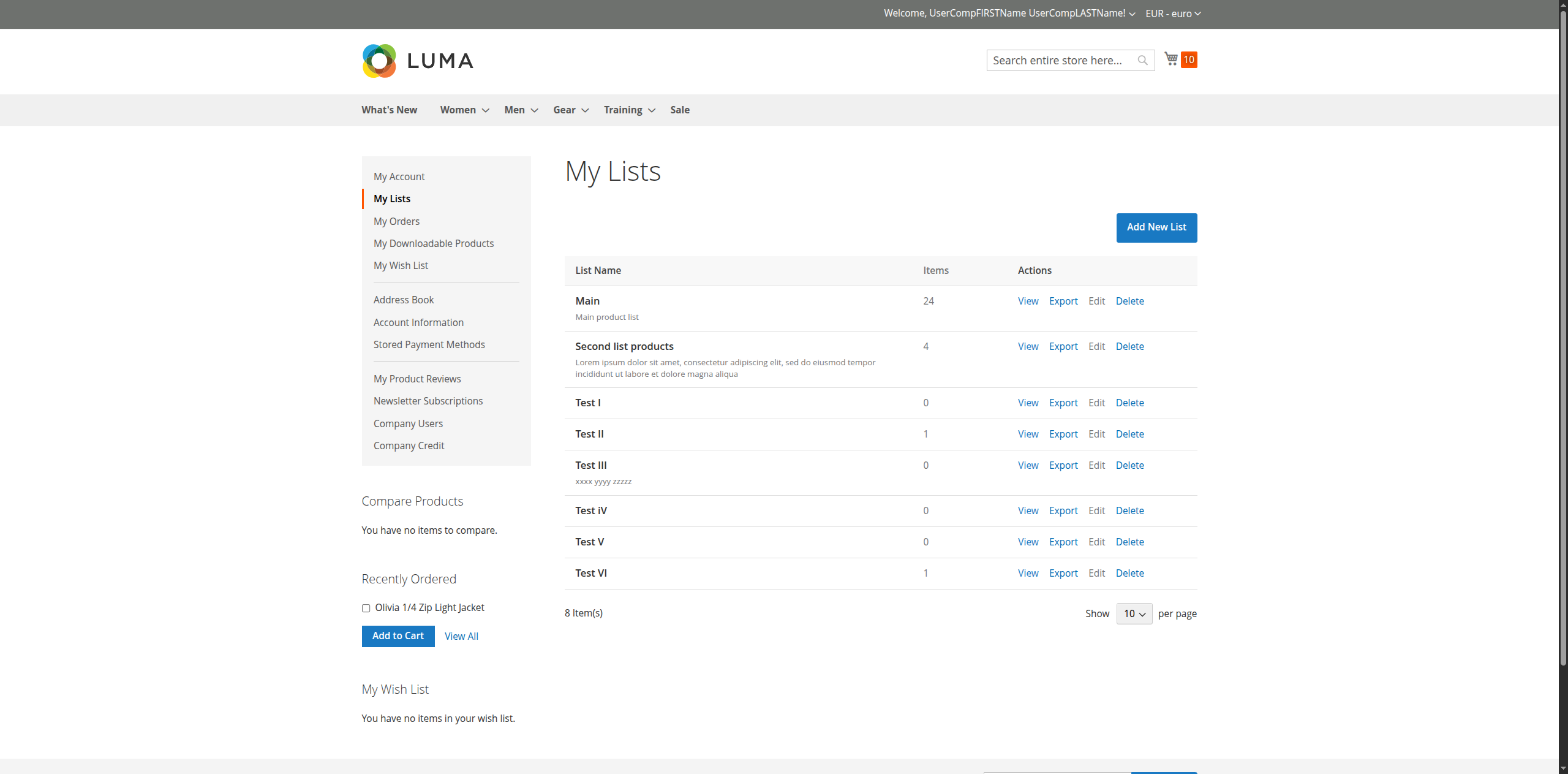
Figure 3.3: Customer Lists Grid View
Creating a New List
Customers can create new lists directly from their account page. Simply provide a name.
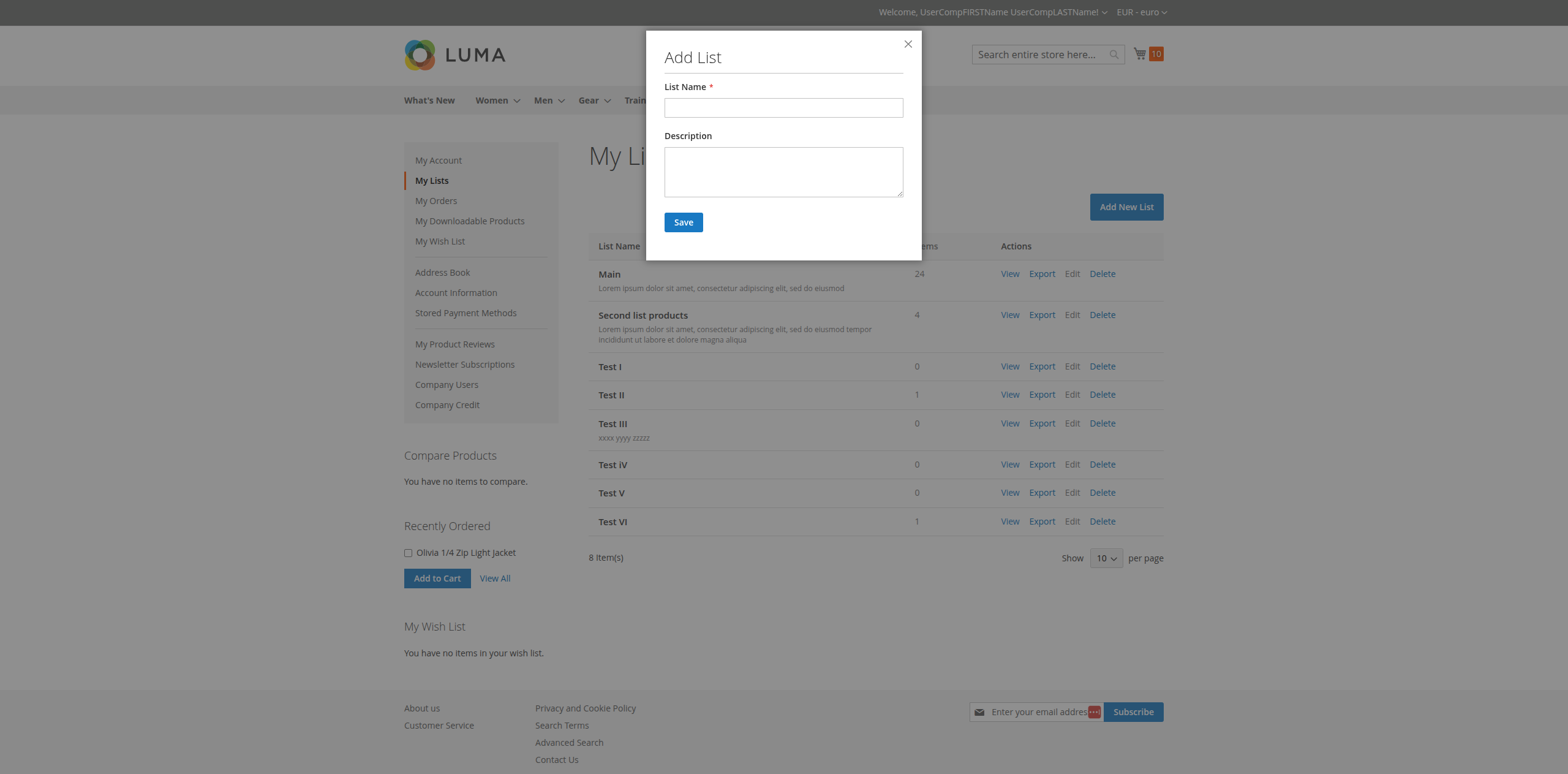
Figure 3.4: Creating a New Product List from Account
List Details
Clicking on a list opens the detailed view where customers can see all products in the list, remove items, move products between lists, or add all items to the cart.
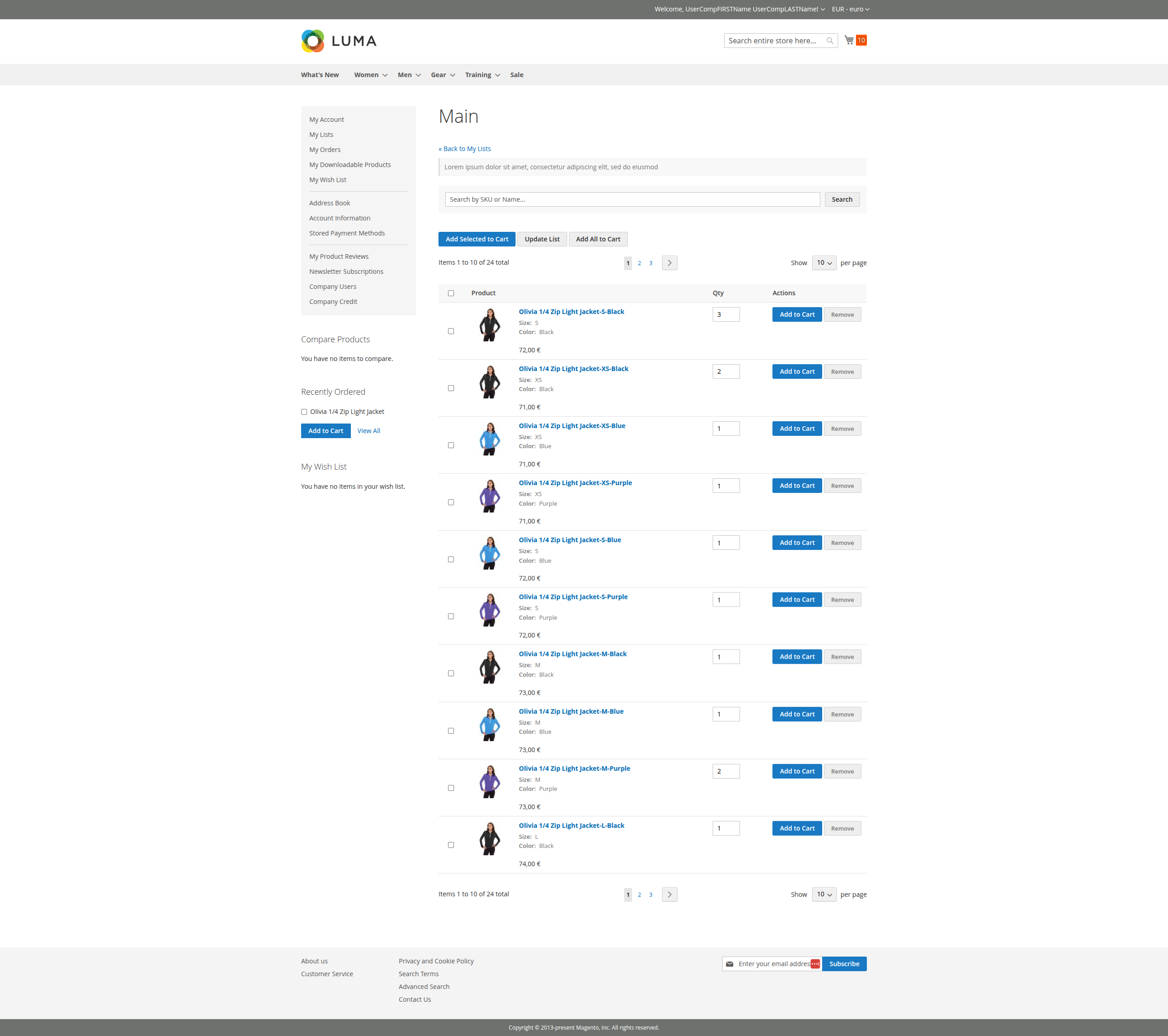
Figure 3.5: Product List Details View